4 Easy Steps Canva Tutorials for Beginners
Welcome to the 4 Easy Steps Canva Tutorial for Beginners Blog! It’s my goal to simplify the process of creating professional graphics using Canva. You’ll learn why Canva is the best tool to use for any graphic design, as well as some helpful tips and tricks along the way. In these 4 steps, I will be covering everything from how to get started easily with your design using templates and creating graphics.

When you are a beginner at anything, especially something as creative as photography and video, it can be tempting to just start chopping out designs and adding text. Or you might feel that the design you have is good enough and want to see how far you can push it before you feel like it needs some extra work. The first step, in either case, is to understand how Canva work. You will be able to identify which type of design you need based on the use case for which you are designing. There will also be sections at the end of the guide which will provide you with additional tips and tricks related to using Canva to create exceptional designs for your products and projects.
What is Canva?
Canva is a free online tool that allows you to create custom visuals. It offers a simple drag and drop process for quickly laying out your visuals. Once you’ve got your Canva files online, it’s just a matter of printing and cutting them out as needed to build your site. Canva’s layout tools help you lay out even the most complex designs quickly and easily.
Benefits of using Canva
Canva templates are great for websites, blog posts, infographics, and anything else you want to show off. The best part is that you don’t have to be an expert designer to use Canva! They have templates specifically designed for blog posts and videos so that even a complete beginner can make an awesome image.
By using Canva templates. Anyone can make it so much easier to create custom content. I don’t have to worry about copying & pasting everything into my layout. I can focus on writing content that is going to blow people away. Canva is a great tool for both small businesses & freelancers who don’t have much time on their hands.
4 Easy Steps Canva Tutorial
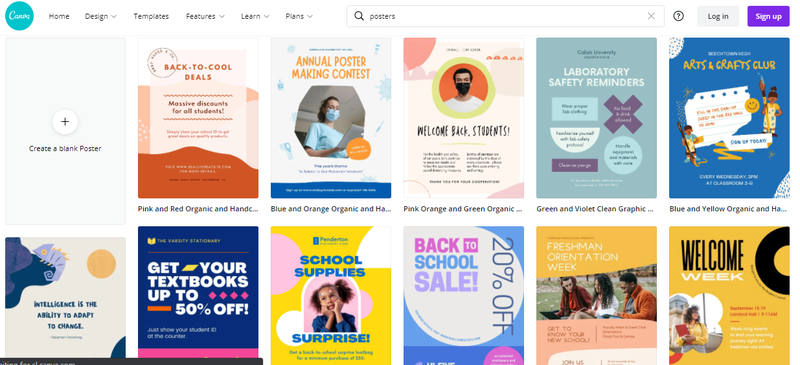
Step 1: Getting Started with Your Design Using a Canva Template
First, Create a Canva account to get started with. Sign in to access the account after email verification. Then from the interface choose your preferred design template from the homepage. These are set to optimal dimensions for each graphic, whether it’s a social media post, flyer, or more. Or you can use custom dimensions by searching for “custom-size”—you can choose pixels, millimeters, or inches.
Step 2: Editing the Background Design
To add a photo as a background, first, add a grid. Once placed on a grid, photos can be resized, cropped, flipped, and layered to create a variety of visual effects. Or, search Images or upload your own. Then drag and drop your image onto the grid: it will snap to fit. You can add filters to change the brightness, saturation, and clarity of the photo. This can help when layering text and elements.
Step 3: Adding TextBoxes and Typography to Create a Professional Design using Canva
Adding text boxes and typography to canvas to create a professional design can lead to confusion. Especially if you aren’t 100% sure what you want to say. But if you want a clean, professional design, it’s best to use one font at a time. If you want an elaborate design, feel free to use two or more fonts—just be sure to keep them balanced for a neat, orderly look.
Step 4: Advanced Editing Techniques to Enhance Your Canva Templates Designs
Ideas are images that will shape how your customers interact with your product or service. These ideas are translated into images in the format of a graphic design. How it looks at the beginning is not always how it will look at the end. This is what allows you to make an educated decision about whether an idea is good or bad. It is also why you need help when creating designs — for example if you want to use an illustrator for your ideas.
Your design might include text, icons, photos, or illustrations. These need to be combined in a way that is visually appealing. Don’t overload your design with too many elements, as it can confuse the visual message of the image which involves the arrangement of elements according to their importance.
If you want to add a photo to your design, try using one of Canva’s frames.
So What’s Next …… Just download your creation(don’t need to add in the step!)
What is the difference between Canva free and Canva Pro?
So what’s the difference between Canva free and Canva Pro? In free Canva, there are fonts to use and you can’t upload your own. In Canva Pro, there are way more fonts in Canva plus you can upload your own fonts. In Canva Pro, there are way more free stock photos and elements. But if you want to go full screen on a mobile device Canva is still better than most other photo editors out there. Not only do you get unlimited custom font options but also higher-quality images in high resolution. These are just a couple of the reasons that Canva Pro has over Canva free.
Does Canva have a mobile app?
You can download Canva’s free app for your smartphone or tablet here. It’s available for both iOs or Android. Bring your ideas to life in minutes.
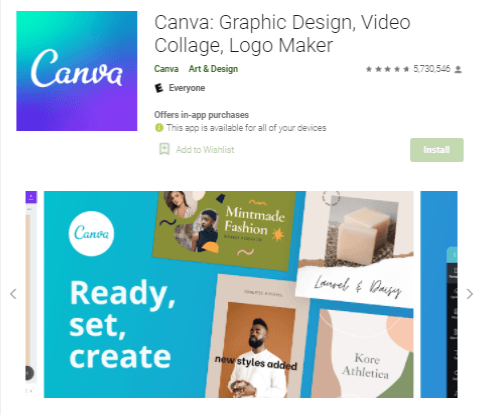
Canva makes video & graphic design amazingly simple for everyone!  Get a photo editor, video maker, and logo creator all in one FREE editing app. Stand out with eye-catching Insta stories, cards, flyers, photo collages — even if you’re new to design.
Crowd favorite features 
• Video editing – crop, flip, trim, cut, and split video files; add pages to video stitch
• Add music to video – tell engaging stories with free audio tracks
• Photo editor – use photo filters, background eraser, and make transparent pictures
• Background Remover (Pro) – cutout product pictures for collages & e-commerce / online shops
• Animation – make designs move with transition effects & animated text stickers
• Add text to photo – 500+ fonts for every mood; use curved, glitch effect, neon text styles, etc
• Sticker / GIF maker – save videos as GIFs for social media
• Logo maker – create logo design & watermark for your business, brand, or esports gaming
Everything you need to create is in Canva. Access a library that has thousands of free stock photos & video montages, background music, illustrations, photo frames, etc. Plus: get professionally designed templates to use for business cards, flyer creators, Instagram stories, posters, CVs, Instagram posts, and more.

You’ve Just Completed Your First CANVA Tutorial!
The ability to create a simple and accurate on-demand template is one of the most important skills an online entrepreneur need. A lot of people think that learning graphic design is hard. They think the learning curve is so steep that only the most tenacious students would ever succeed. While it can be hard to master skills like entering numbers or coloring with gradients, with Canva it doesn’t have to be impossible. There are several Canva tutorials that are specifically dedicated to teaching designers how to use the tool.
Remember that practice makes perfect, so don’t get frustrated if your first design isn’t quite right. Keep practicing, and you’ll be laying out beautiful images in no time.
SUBSCRIBE TO MY NEWSLETTER FOR ANY NEW TUTORIALS AND REVIEWS
REFERENCE:
https://www.google.com/, https://www.canva.com/ https://play.google.com/store/apps/details?id=com.canva.editor&hl=en&gl=US